
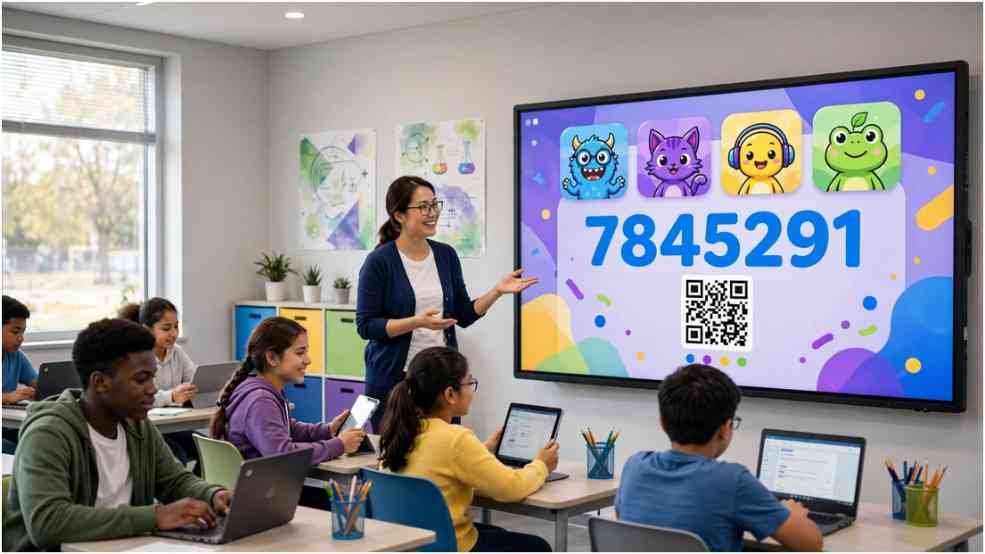
A strong classroom game can lose momentum during the first minute. Students mistype Blooket Codes, the projector disconnects, and late arrivals ask where to join.
I solve that operational problem by planning three entry routes before the session begins: a visible Game ID, a QR code, and a backup Join Link. Students receive the same destination, but no single device controls access.
Table of Contents
ToggleHow Do Blooket Codes Work for Teachers?
Blooket Codes are temporary Game IDs generated when an educator launches a hosted session. The lobby also provides a QR code and direct link that teachers can share with players.
The code connects students to the session; it does not contain the question set itself. A new hosted game can therefore produce a new ID, even when the teacher reuses the same set.
This distinction matters when educators post materials in a learning management system. A previous live code should not be presented as a permanent resource. Teachers should share the current session details when the lobby is ready.
How Do You Generate a Blooket Game Code?
The process starts with the lesson objective, not the number. Select questions that match what students should retrieve, apply, or review.
Select a Question Set and Game Mode
Open a question set from My Sets, Discover, or the creation area to make a photo book and other activites. Preview its questions before hosting. A popular public set may still include outdated facts, unclear wording, or material beyond the intended grade level.
Select Host and choose a live game mode. Blooket’s official hosting instructions confirm that the completed setup produces a Game ID, QR code, and Join Link.
The best mode depends on the learning goal. A fast competitive mode may suit retrieval practice. A slower option may work better when questions require calculations or close reading.
Configure the Live Session
Set the time or goal and review the available host controls. Decide whether students can join late and whether they may create their own nicknames.
Random names can reduce inappropriate entries and speed up access. Recognizable names may make reports easier to interpret. I choose the setting before displaying Blooket Codes, since changing procedures after students enter causes confusion.
Select Host Now when the class is ready. Keep the lobby visible until the expected players appear, then start the game.
What Is the Best Way to Share a Blooket Join Code?
The best method depends on the devices and classroom format. I do not rely on a single access route.
Use a Three-Channel Plan in the Classroom
Project the Game ID for students using laptops or Chromebooks. Display the QR code for phones or tablets. Copy the Join Link to an approved classroom platform as a backup.
Suppose 24 students have two minutes to enter. If each typing problem takes 20 seconds of teacher attention, six errors consume two full minutes. A QR option lets those students recover without waiting for individual help.
That worked example exposes a hidden cost: joining errors do not affect only the student with the problem. They delay the entire class. Multiple entry methods preserve lesson time.
Share Links Carefully in Virtual Classes
A direct link is usually the simplest option for remote learners. Place it in the official meeting chat or learning platform after the host lobby opens.
Avoid posting active Blooket Codes on public social accounts. Unknown participants could enter before the session closes. If an unfamiliar nickname appears, pause and verify the class roster rather than ignoring it.
For homework, use Blooket’s assignment workflow rather than treating a live Game ID as a lasting homework code. Official documentation explains that homework can be opened through a QR code or assignment link and may not require a student account.
How Can Teachers Prevent Code and Login Problems?
Place the official joining address on the board before students open their devices. This reduces search-engine detours to unofficial code pages.
Ask students to follow this order:
- Use the displayed ID, QR code, or approved link.
- Enter the assigned nickname format.
- Wait in the lobby without refreshing repeatedly.
- Report the exact error if access fails.
Keep the Join Link available as a fallback. If one student cannot connect, test the link on an approved teacher device. If several students fail simultaneously, investigate the network or session settings instead of checking every device separately.
School filters can also block scripts to write a book report, images, or game traffic. Teachers should contact the school technology team rather than instructing students to use proxy or “unblocked game” websites.
Which Blooket Game Mode Fits Your Lesson?
Blooket lists more than 25 modes across live, solo, and homework formats. Mode availability can change, while some seasonal or paid modes may have different limits.
For a short factual review, I favor a mode with simple rules and limited setup. For deeper questions, I allow more time so reading speed does not overpower subject knowledge.
Review each question before launching Blooket Codes. Competitive visuals cannot repair a weak question set. Check factual accuracy, answer choices, reading level, and alignment with the lesson.
Use the post-game report as instructional evidence, not merely a scoreboard. A question missed by most of the class may reveal an unclear item or a concept that needs reteaching.
How Should Teachers Protect Access and Student Privacy?
Use only district-approved educational tools and follow local account rules. The U.S. Department of Education advises teachers to consult school or district administration before adopting an online classroom application.
Limit visible personal information. A class-specific naming pattern, initials, or random names may be more suitable than publicly displaying complete names. The right choice depends on district policy and reporting needs.
The FTC’s COPPA guidance states that schools may sometimes consent to data collection for children when the service operates for an authorized educational purpose. It also recommends that schools or districts assess a service’s information practices.
Do not publish screenshots containing student nicknames, scores, or session details without proper authorization. Close the session when the activity ends and remove temporary access information from shared spaces.
Frequently Asked Questions
1. How do teachers create Blooket Codes?
Choose a question set, select Host and a game mode, configure the settings, and launch the lobby.
2. Can students join after a Blooket game starts?
They can join late when the host enables the relevant late-joining setting.
3. Can one Blooket code be reused tomorrow?
Treat live Game IDs as session-specific and generate fresh access details for the next hosted game.
4. Should teachers publish Blooket game codes online?
No; share them through controlled classroom channels to reduce unwanted participants and protect the session.
Run the Room—Don’t Let the Code Run You
I see Blooket Codes as classroom logistics, not the lesson itself. A good launch protects time, keeps access orderly, and directs attention back to the questions.
Prepare the Game ID, QR code, and Join Link before students connect. Review privacy rules, select the nickname policy, and keep one backup channel ready. Then close the session when the activity ends—the code has finished its shift.


One thought on “Blooket Codes: Host Safer, Smarter Classroom Games”